Pointer spotlight
A soft circle follows your pointer, even between clicks.
Capture microphone and system audio while you highlight your cursor, clicks and drags. Save the recording with the effects included. You can now add your camera to the recording, too.
Download version 1.1.6 (build 16)
No iOS purchase needed. Try it for 7 days without a card.
macOS 15 or later · Apple silicon and Intel
A soft circle follows your pointer, even between clicks.
Every left and right click shows up as it happens.
Drags draw a line that fades from its oldest end.
Set the left and right click effects independently. You can turn off the effect for either button.
Change the settings, then click, right-click or drag on the screen.
Keep the pointer still and hold the left button for about half a second to zoom in around it. Right-click to go back to normal.
Enable screen zoom and select 1.5×, 2×, 2.5×, 3× or 4× in Effects or from the menu bar. On first use, follow the app’s prompts to grant Screen Recording and Accessibility access.
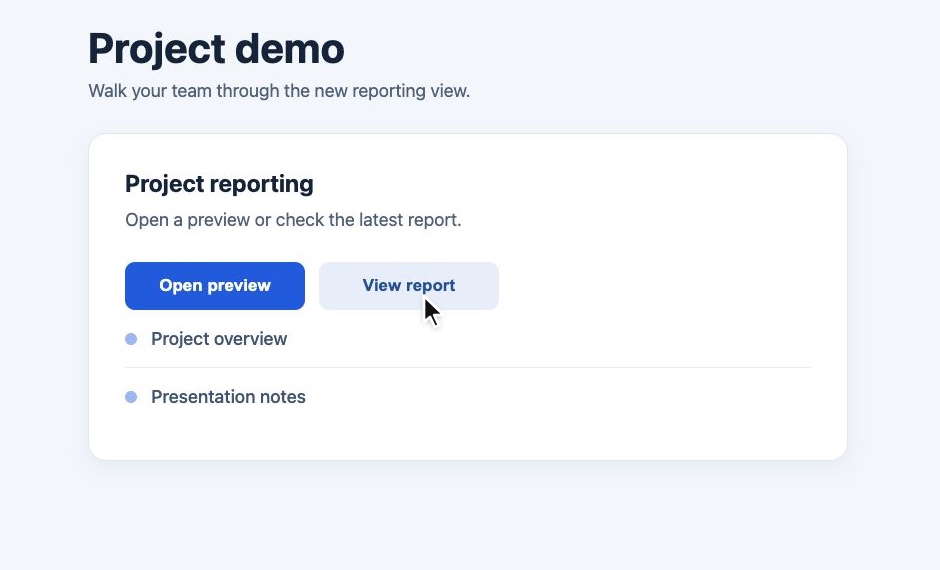
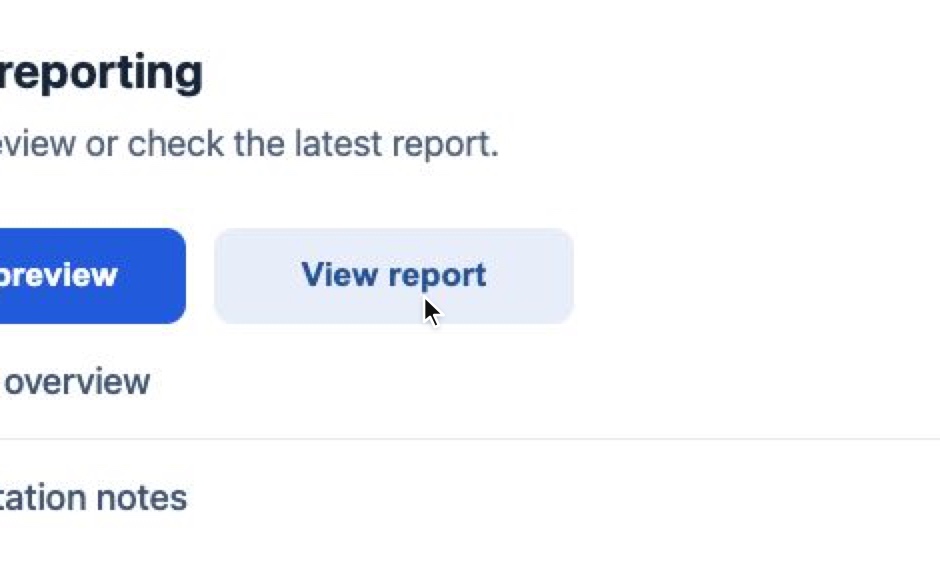
Make it easier to follow where Claude points and clicks during a browser demo.
Get it from the Chrome Web Store
Replace Claude’s orange cursor with a black arrow with a white outline. The cursor tooltip and click ring are hidden.
 Enlarge image
Use a separate switch to turn off the orange glow. Claude’s working indicator and Stop button stay available.
 Enlarge image
You’ll need Claude in Chrome. Open the page you want Claude to use, then use the extension in the Chrome toolbar to turn on either option for that page.
 Enlarge image
Record the entire display, one window, or an area you outline by dragging.
Choose a microphone and check its input meter before you record. Enable system audio to include sound from apps and browsers on your Mac.
Choose Full HD, 4K or the source resolution at 30 or 60 fps. Your recording is saved as an MP4 in the folder you choose.
Choose a 3-, 5- or 10-second countdown, start and stop shortcuts, and an auto-stop timer. Use the movable recording indicator to pause and resume. Paused time is left out of the video.
Choose the built-in or an external camera. Check the enlarged live preview, then place and resize the overlay. Choose a landscape rectangle, circle, portrait rectangle, heart or star, and blur the background if you like.
Recording quality depends on the source resolution.
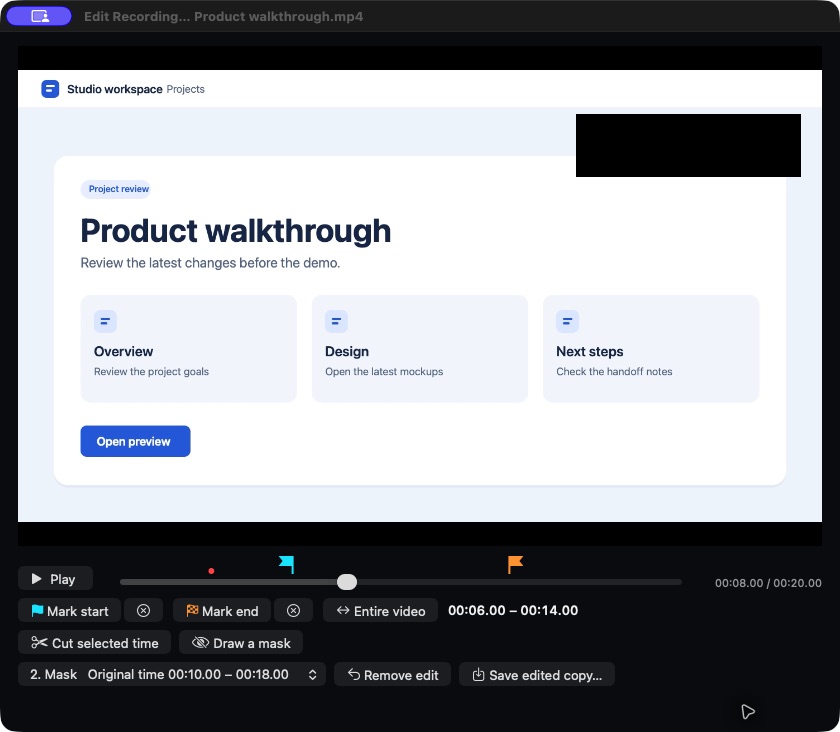
Open a video with Edit Recording and save the finished edit as a separate MP4.
Set and clear the start and end flags independently on the timeline. After a cut, the duration updates and you can play the edited video right away.
Draw a solid black rectangle over details such as personal information or notifications. Choose where it appears and for how long.
 Enlarge image
Turn on “Include camera” in the recording settings. Select “Adjust Camera…” to choose a camera and set its position and size. Allow camera access in macOS when prompted.
Yes. The recorder captures the selected microphone. Enable System audio to include sound playing on the Mac. Close unrelated audio sources before recording a demo.
Check the selected microphone and the System audio switch. In macOS Privacy & Security, check Microphone and Screen & System Audio Recording permissions for Tap Pointer. Make and play a short test recording before a longer session.
Yes. Use the live pointer spotlight and click effects while presenting. When you use Tap Pointer’s built-in recorder, the effects appear in the saved MP4 as well.
Try all features for 7 days. After the trial, you can choose to subscribe for US$1.49 per month, including tax.
Download version 1.1.6 (build 16)
If you previously activated the Mac app through iOS, the latest version stays free for you.
Mac setup guide
Check your access and purchase status in the app, open the official purchase page or manage your subscription. Show your recovery code and use it to restore your subscription on another Mac.
Check for a new version in Settings or from the menu bar and open the official download page. Allow macOS notifications if you want to be alerted to updates.
Match your Mac’s language or choose from seven languages. You can also copy the support email address and control crash reporting in the app.